
If you’re asking “what graphics card do I have,” you can find the answer without opening your computer. Windows provides several built-in tools that identify your GPU within seconds. Mac and Linux systems also offer quick ways to check graphics hardware. Quick answer: On Windows, press Ctrl + Shift + Esc, select Performance, then choose GPU. Your graphics card model appears in the upper-right corner. You can also open Device Manager and expand Display adapters to see every graphics processor Windows detects.
Quick Ways to Check Your Graphics Card
| Method | Best for | Where to find the GPU |
|---|---|---|
| Task Manager | Fastest Windows check | Performance → GPU |
| Device Manager | Seeing every detected adapter | Display adapters |
| Windows Settings | Simple Windows 11 check | Display → Advanced display |
| DirectX Diagnostic Tool | GPU and driver information | Display tab |
| Vendor software | NVIDIA or AMD details | System information |
| macOS System Information | Mac hardware | Graphics/Displays |
Key Takeaways
* Task Manager is usually the fastest option on Windows 10 and Windows 11. * Device Manager can show integrated and dedicated graphics processors together. * Seeing GPU 0 and GPU 1 does not mean one is automatically better. * A browser-based GPU detector may show the processor currently serving your browser. * Record the complete GPU model when checking game or software requirements. * Dedicated video memory, or VRAM, can matter alongside the GPU model.
What Graphics Card Do I Have? Start With Task Manager
Task Manager gives most Windows users the fastest answer. Press Ctrl + Shift + Esc and choose the Performance section. Select each GPU entry shown in the left panel. The graphics processor’s full name appears near the upper-right side. You might see NVIDIA GeForce, AMD Radeon, or Intel graphics listed there. Microsoft recommends Task Manager as one built-in method for checking a Windows GPU. Don’t assume GPU 0 means your main or fastest graphics processor. Windows uses those numbers to distinguish detected graphics devices. A laptop can list integrated graphics first and a dedicated card second.
Method 2: Find Your GPU in Device Manager
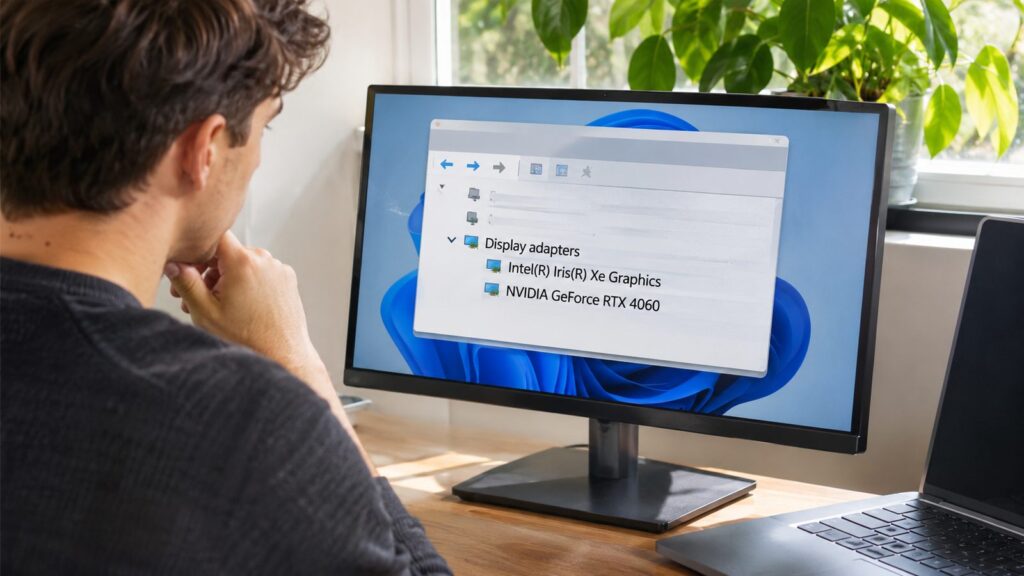
Right-click the Windows Start button and select Device Manager. Find Display adapters and expand that category. Windows should display the graphics processors it currently recognizes. This method is useful when your computer contains more than one graphics processor. An Intel entry may represent integrated graphics on many systems. A separate NVIDIA or AMD entry may represent dedicated hardware. AMD also documents Device Manager as a method for identifying supported graphics hardware. You can open the adapter’s properties for additional device information. If you see Microsoft Basic Display Adapter, don’t treat that as your card’s model. It usually means Windows is using a generic display driver. You may need the correct graphics driver before Windows displays the specific hardware name.
Method 3: Check Through Windows Settings
Windows 11 can display graphics information through the Settings app. Open Settings, choose System, and then select Display. Scroll down and open Advanced display. Look under the display information shown on that page. Microsoft says this area can identify the graphics hardware serving your selected display. The result is especially convenient when you already have display settings open. Multiple monitors can make this screen slightly confusing. Select the correct display before reading its information. Different screens can sometimes be connected through different graphics hardware.
Method 4: Use the DirectX Diagnostic Tool
Press Windows + R, type dxdiag, and press Enter. Wait for the DirectX Diagnostic Tool to collect system information. Open the Display tab afterward. The Display section provides graphics hardware and driver details. Systems with several graphics devices may show additional display-related tabs. This makes dxdiag useful when you want more context than a model name. You don’t need to install another application for this method. The utility comes with Windows and is commonly used for graphics troubleshooting. It can also help when comparing your system against a game’s requirements.
Method 5: Check NVIDIA or AMD Software
NVIDIA users can inspect their hardware through NVIDIA’s installed software. The NVIDIA Control Panel can expose system information when compatible drivers are installed. Look for the complete model rather than recording only the GeForce family name. AMD users can check graphics information through AMD’s software or Windows Device Manager. AMD’s support documentation also explains how hardware IDs identify specific devices and board manufacturers. This deeper information can help when the exact card manufacturer matters. Vendor tools become useful after you know the general GPU model. They can expose driver details and other hardware information. You usually don’t need those details for a simple compatibility check.
Method 6: Check a Mac or Linux Computer
On a Mac, open the Apple menu and view your system information. Depending on your macOS version, graphics details appear in system information or hardware reports. Look for the Graphics or Displays section. Linux users have several options depending on their distribution. Commands such as lspci can list detected graphics controllers. Desktop system-information tools may also provide the GPU name without a terminal. Record the complete model whenever possible. A broad label like “Radeon Graphics” gives less information than a specific model. Precise identification makes later compatibility research much easier.
Why Does My Computer Show Two GPUs?
Two graphics processors are common on modern laptops. One may be integrated into the processor and designed for lower power consumption. The second may provide dedicated graphics performance for games or demanding applications. Windows can display both processors in Task Manager and Device Manager. Programs don’t necessarily use the processor shown first. Windows and application settings can determine which GPU handles a particular workload. This arrangement can improve battery life while preserving graphics performance when needed. Your web browser may use integrated graphics even when a dedicated card is installed. That distinction matters when using an online GPU detector.
Integrated Graphics vs. Dedicated Graphics
Integrated graphics share system resources and are commonly built into a computer’s processor. They work well for everyday tasks, video playback, and many lighter applications. Modern integrated graphics can also handle some games at suitable settings. A dedicated graphics card has graphics hardware intended for heavier visual workloads. Dedicated models commonly include their own video memory. Gaming, 3D rendering, editing, and other graphics-intensive programs can benefit from that additional capability. Knowing which type you have helps when checking software requirements. If gaming is your focus, your display also affects the experience. Magclone’s guide to choosing a TV for PS5 gaming explains related display features.
How to Check How Much VRAM Your Graphics Card Has
The model name isn’t the only useful specification. VRAM, or video memory, can affect performance in games and graphics-heavy applications. Some software lists both a GPU family and a minimum video-memory requirement. Open Task Manager and select Performance → GPU. The panel displays memory information alongside current graphics activity. Look for dedicated GPU memory when your system has a discrete card. Don’t confuse shared GPU memory with dedicated video memory. Integrated graphics commonly borrow part of system memory. A dedicated card generally has its own memory available for graphics workloads.
Can a Website Detect Your Graphics Card?
A website can sometimes identify the graphics processor exposed through technologies such as WebGL. The reported information comes from the graphics renderer available to the browser. That makes browser detection convenient but not definitive in every configuration. Privacy settings, virtualization, drivers, or browser configuration can affect the reported name. A laptop browser may also run through integrated graphics instead of the dedicated processor. Windows tools are better when you need to confirm every GPU installed. Browser detection also doesn’t expose every low-level hardware detail. It won’t replace dedicated diagnostic software for temperatures, live clocks, or detailed sensors. Use it for quick identification rather than complete hardware analysis.
What Should You Write Down After Finding Your GPU?
Record the complete graphics model instead of only its manufacturer. “NVIDIA” tells you the company, while “GeForce RTX 4070” identifies a much more useful product family and model. Laptop versions should also be recorded exactly as Windows presents them. You should also note your available VRAM when software requirements mention it. Keep your graphics driver information handy if you’re troubleshooting crashes or display problems. These details make support searches far more specific. Your GPU information can also help with broader computer tasks. For example, Magclone covers Windows workflows in its guide to managing duplicate photos on an SD card. Gamers can also read Magclone’s explanation of FastDL for game servers.
What If Windows Doesn’t Show the Correct Graphics Card?
Start by checking Device Manager for warning symbols or generic adapter names. Missing or incorrect drivers can prevent Windows from displaying the expected model. Don’t download drivers from unknown websites. Use your computer maker’s support page or the graphics manufacturer’s official support resources. Restart the computer after completing driver changes when instructed. Then check Task Manager or Device Manager again. A desktop computer can present another possibility. Your monitor may be connected to a motherboard video output instead of a dedicated card. Check the physical connection if a discrete GPU seems absent from normal use.
Why Knowing Your GPU Matters
The GPU model helps you judge whether games and applications can run properly. Developers often publish minimum and recommended graphics requirements. Matching your exact model makes those requirements easier to interpret. It also helps when updating drivers or troubleshooting performance. Selecting software for the wrong graphics family can create unnecessary problems. Accurate identification should therefore come before changing graphics-related settings. Understanding the hardware can also guide future learning or upgrades. Readers interested in computing careers can explore Magclone’s computer science overview. The site also compares Python and SQL for readers exploring technical skills.
Frequently Asked Questions
What graphics card do I have on Windows 11?
Open Task Manager with Ctrl + Shift + Esc, select Performance, and choose GPU. The model appears near the upper-right corner of the panel. You can confirm it by expanding Display adapters inside Device Manager.
How do I know whether my GPU is NVIDIA, AMD, or Intel?
Read the complete name displayed in Task Manager or Device Manager. The beginning of that name normally identifies NVIDIA, AMD, or Intel as the graphics vendor. Record the remaining model information because the manufacturer alone doesn’t describe performance.
Why are GPU 0 and GPU 1 both listed?
Your computer has more than one graphics processor available to Windows. This setup is especially common on laptops with integrated and dedicated graphics. The numbering identifies devices and doesn’t provide a performance ranking.
Is a GPU the same thing as a graphics card?
People often use both terms interchangeably in everyday conversations. Technically, the GPU is the graphics processing chip itself. A dedicated graphics card contains that processor along with memory and other supporting components.
Can I check my graphics card without opening my computer?
Yes, and opening the case is unnecessary for normal identification. Task Manager, Device Manager, Settings, and dxdiag can identify recognized graphics hardware. Software methods should be your first choice unless you need the exact physical board model.
The Fastest Way to Get Your Answer
If you only need the model name, start with Task Manager. The process requires a few clicks and doesn’t require extra software. Device Manager is the best second check when multiple adapters appear. Once you answer “what graphics card do I have,” record the complete name and available VRAM. Compare those details with the requirements for your game or application. You’ll then have the information needed for drivers, troubleshooting, compatibility checks, or a future upgrade. —